Obsidian Replace Commands
[!SUMMARY]
Languages TypeScript, JavaScript, HTML, CSS Tools Obsidian API Skillset Web Development, UI/UX Design License: 0-BSD
Automating Search & Replace

While editing and publishing over 300 articles for CinQ on Medium in a shared Obsidian vault, I found myself relying heavily on regex to automate formatting, fix recurring writing quirks, and clean up Markdown files. While there are plenty of search-and-replace tools available, I couldn't find one that allowed me to sequence and chain multiple commands together with ease.
After wasting too much time constantly opening files in Notepad++ to run these replacements, I decided it was time to build an Obsidian plugin to clean up the workflow. What started as a hacked-together tool for personal use quickly seemed like it might be worth sharing, so I took the time to clean up the UI/UX and published it as a proper Obsidian Community Plugin.
The Idea
Instead of running multiple, isolated search-and-replace queries one by one, Obsidian Replace Commands allows users to build and save a sequential chain of rules as single-click actions. It is built to be simple, flexible, and easy to configure.
| Gallery | ||
|---|---|---|
 |
 |
 |
Sequential Processing
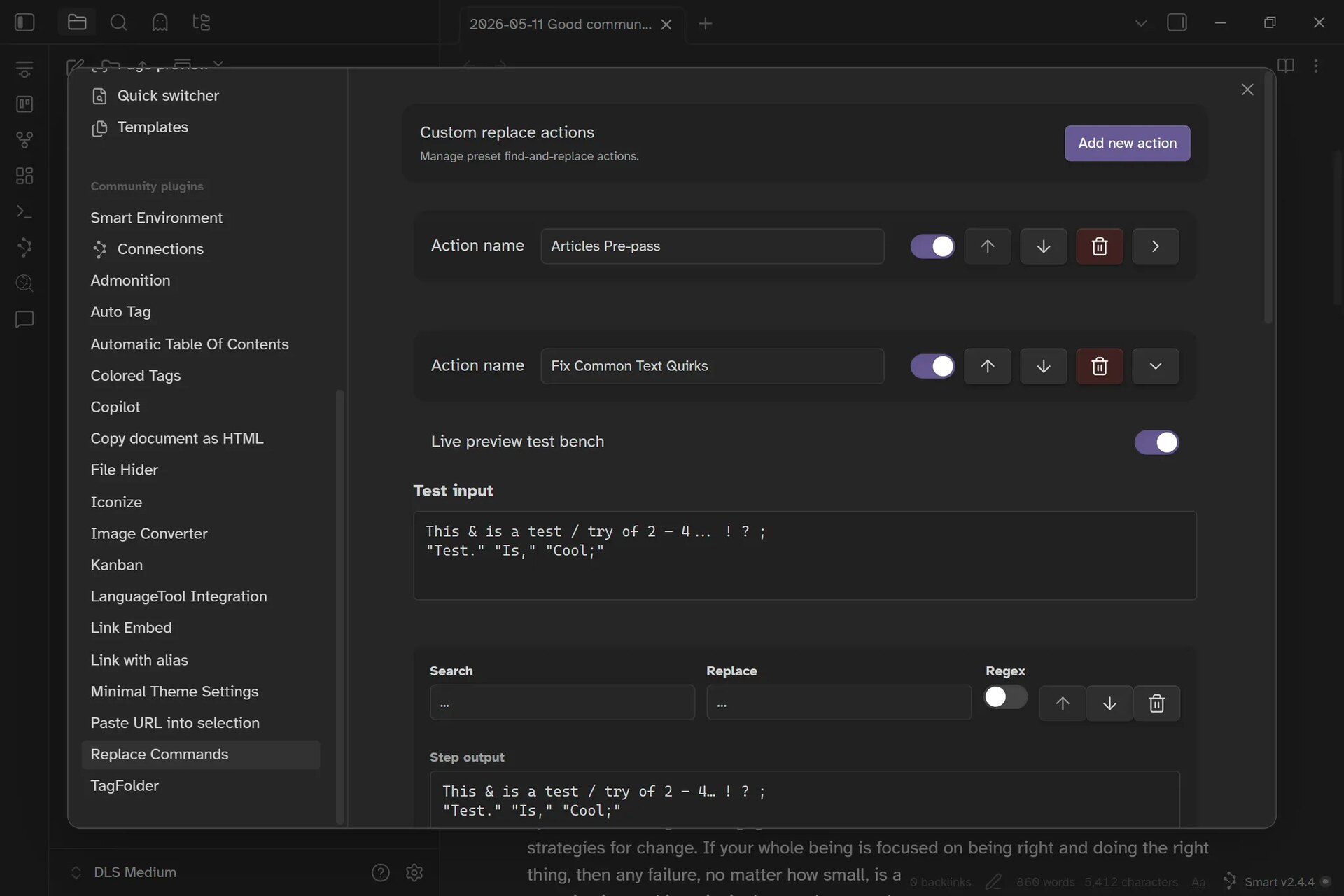
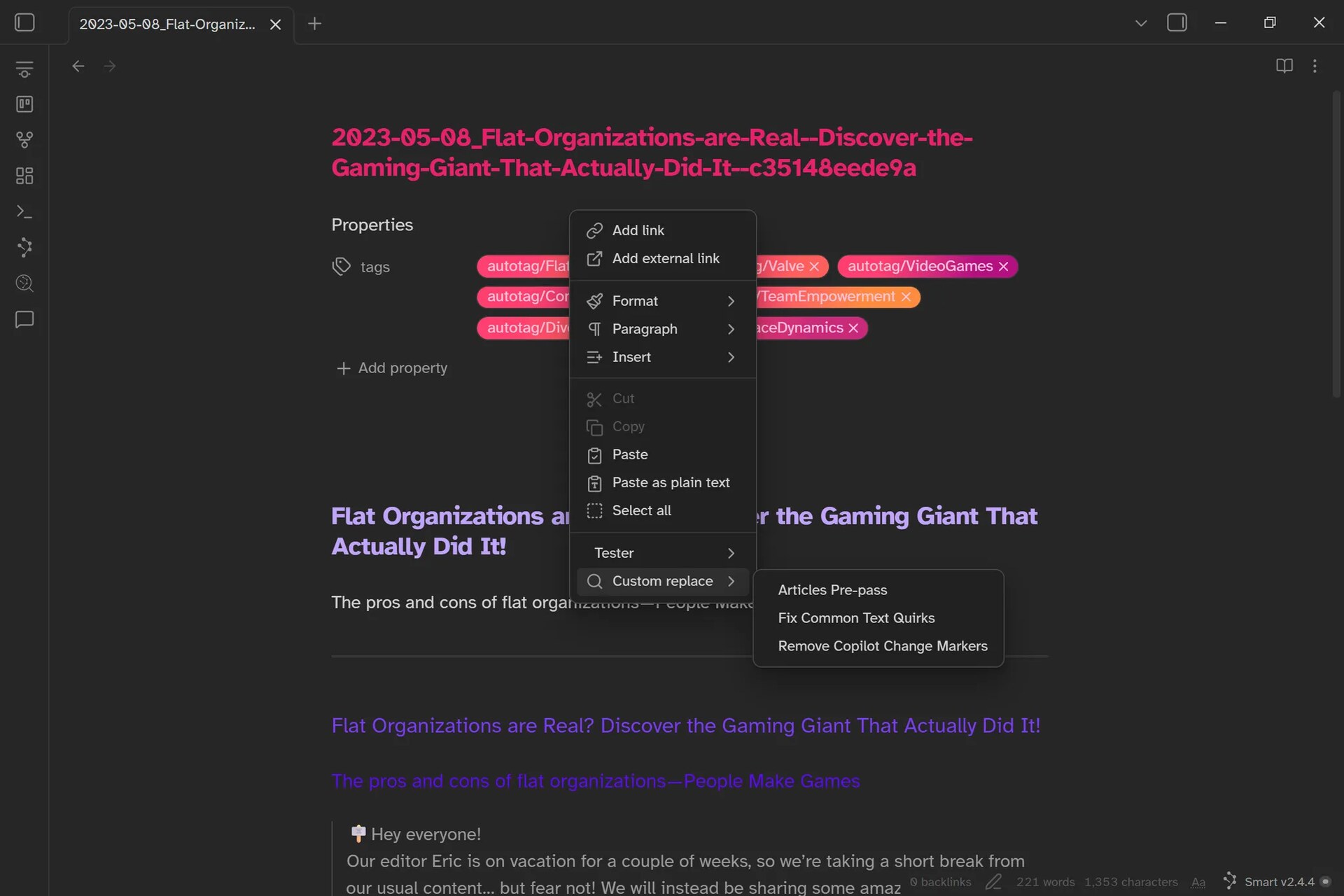
Users can build custom, named actions (e.g., "Remove references" or "UK to US spelling") containing multiple rules that execute in sequential order from top to bottom.
Contextual Replace
The plugin intelligently adapts to the user's current context. For example, if text is highlighted, the action applies only to the selection; if nothing is selected, it automatically processes the entire document.
Robust Text Matching
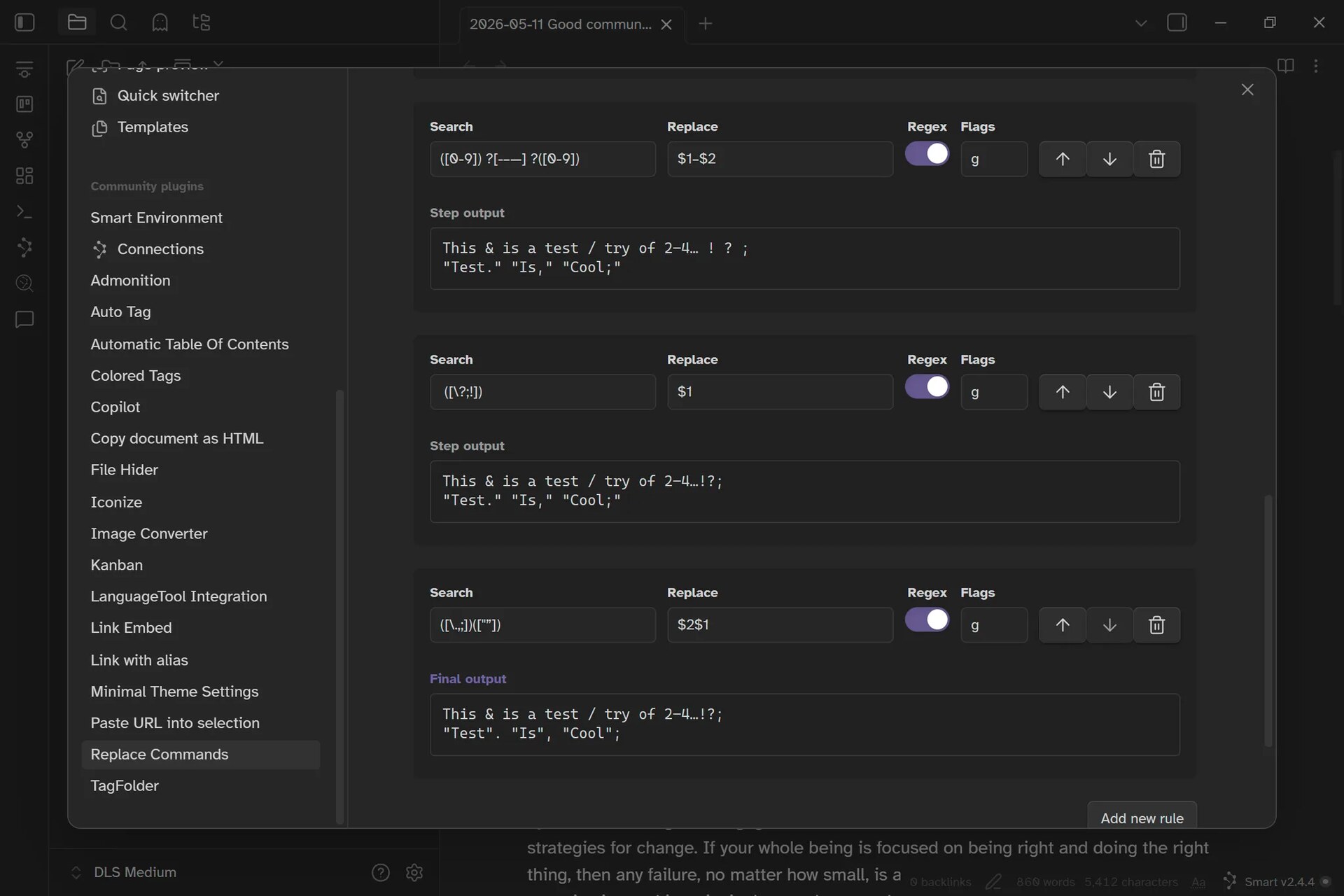
Obsidian Replace Commands offers full support for Regular Expressions (including capture groups and custom flags), while also handling plaintext for simplicity.
Engineering for User Experience
Because my goal was to make this available to the public, I put a significant amount of thought into the user experience. Regular expressions are already complex enough without having to fight a clunky interface, so the settings and command management needed to be intuitive and frictionless.
Previewing Results
To that end, I made sure to include a text box where users can input example text that then passes through the command's replace actions step-by-step, displaying the result of each step for easy debugging. Anyone who has played around with regex will know how important this sort of thing can be.
Safety First
I also wanted to make sure everything was safe when modifying large
documents, so all changes are applied in one go, allowing users to
revert massive, multistep document transformations instantly with a
single Ctrl+Z undo.