WinGet Updater
[!SUMMARY]
Languages PowerShell, Inno Setup, Batchfile Tools WinGet, Inno Setup Skillset Graphic Design, Console Tools, UX, Packaging License: MIT
Automating Updates for Windows Apps
Like most devs using Windows, over time, my desktop started accumulating quite a few apps, frameworks, and dependencies. This is fine, but for projects I only touched every few months, or even years, things could become out of date over time. Moreover, some desktop apps have terrible update UX, meaning that you have to find and download the executable when prompted on launch, or worse, manually stay informed of updates.
There is a solution to this in the form of package managers; but for some things, you just want updates to happen in the background without having to monitor everything or remember to run manual updates. So I built a short script that runs automatic updates using the native Windows Package Manager (WinGet) on device/session start.
What started as a single PowerShell script evolved into a fun side project, and eventually into a complete, lightweight tool that I now use to maintain friends and family devices reliably. While there are other apps with advanced UIs that do similar things, WinGet Updater is intentionally simple, with a codebase that I fully understand, can easily maintain, fix, and extend in minutes.
How it Works

WinGet Updater is built as a tool that lets you automatically or manually use WinGet to update apps, including an option to define which apps get updated automatically and which get ignored. It can optionally be configured as a "set-and-forget" task that runs daily on startup and/or logon.
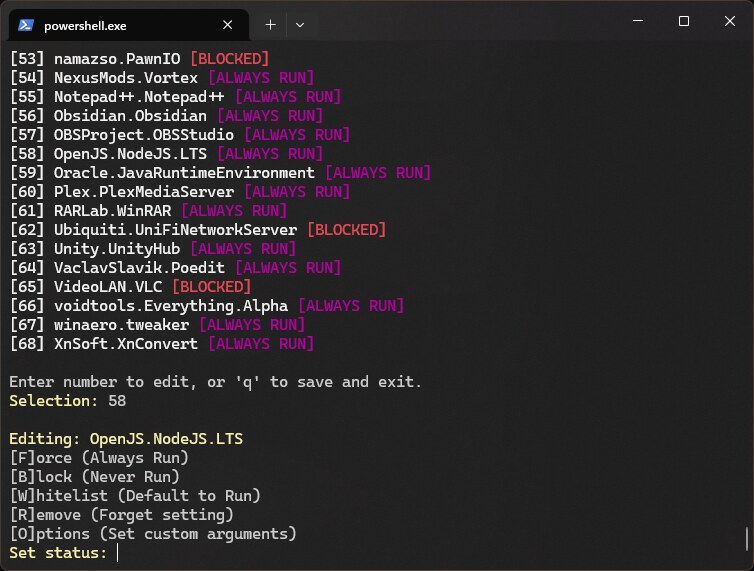
When WinGet Updater runs, it only shows a Terminal window if it encounters an application update that has not yet been assigned an update preference. A silent mode is also available to prevent it from displaying a UI when running automatically. A simple interactive menu allows the user to decide whether apps should update automatically in the future, require manual approval, or be blocked entirely (editable also after the fact through a sub-menu).
Keeping Things Simple
I wanted this to be as simple and straightforward as possible, so I
wrote it entirely in PowerShell and set up a dedicated script to handle
installation and updates. This lets me package WinGet Updater using a
standard Windows Installer built with Inno Setup, but also as a portable
version using a .bat script.
Application-Specific Arguments
Users can attach specific WinGet update flags to individual
applications (such as --interactive,
--location, or --force) for software requiring
custom installation paths or user input.
Command Line Execution
Because it's built using PowerShell, users can also use the script
directly without installation and thus bypass the standard execution
flow using custom flags such as -Silent to skip the
interactive menu or -Minimal to reduce console noise.
Silent Maintenance Mode
Because I use this tool to manage devices for non-technical friends and family, I specifically engineered a "silent mode".
When enabled during setup, the updater runs completely invisibly in the background, only updating apps that have been explicitly marked for auto-update. All other updates are quietly ignored, ensuring end-users are never bothered with popups or update decisions. As the maintainer, I can simply run the updater manually whenever I check in on their device to approve/block any pending updates and add them to the automatic whitelist.